
CityTime Login: How to Sign In to the NYC WebClock Portal
If you work for a New York City agency, chances are you clock in and out through CityTime. The payroll and timekeeping system that’s replaced paper time cards across most of the municipal workforce. This guide covers the actual CityTime login process, what to do when it doesn’t work, and a few things about the system most login guides skip entirely.
What is CityTime?
CityTime is the timekeeping and payroll platform used by dozens of NYC mayoral agencies to track employee hours, leave, and overtime.
Employees clock in and out through a web-based portal (WebClock), and that data feeds directly into payroll processing – no manual time cards, no paper approvals sitting on a supervisor’s desk.
CityTime NYC Login Requirements
Employees can manage their entire account according to their preferences. In addition to payroll and timekeeping management, CityTime login also supports disaster response and other emergency management functions.
To access your personal details through the CityTime NYC portal, you need to sign in first. Before doing so, make sure you have the required login credentials on hand. Here’s what you’ll need:
- Official website link to sign in: https://webclock.nyc.gov/
- Your registered username
- Your login password
- An internet connection
- A mobile device, laptop, or desktop
CityTime Login (2026 Step-by-Step Guide)
The official portal for most agencies is webclock.nyc.gov. This is the live CityTime sign-in page. I checked it directly, and it currently displays a reminder about FLSA overtime rules on the login screen, which is a useful sign you’re on the right page and not a lookalike site.
To log in:
- Go to webclock.nyc.gov.
- Enter the username your agency assigned you.
- Enter your password.
- Click Sign In.
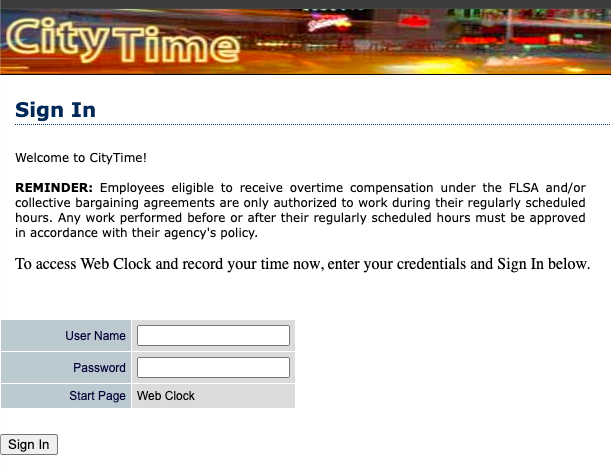
That’s it — there’s no multi-step verification flow, no email/phone selection screen. If a site asks you for anything beyond a username and password on the first screen, you’re probably not on the real CityTime portal. The portal is secure as the Dollar tree compass portal.
Not Every Agency Uses the Same URL
Here’s something that trips people up and that a lot of login guides get wrong: CityTime isn’t a single, universal login page for every city worker. Some agencies run their own dedicated sign-in addresses rather than routing through the main WebClock domain.
For example, employees at the Department of Environmental Protection use an agency-specific address rather than the general public.
If webclock.nyc.gov doesn’t recognise your credentials, don’t assume the system is broken — check whether your agency issued you a different link. Either your onboarding paperwork or your supervisor is the fastest way to confirm this, since agency IT departments don’t always publicise their specific URLs.
What to Do If You Can’t Log In
Most CityTime access problems fall into one of four buckets:
Wrong portal – As above, I confirm you’re using the URL your specific agency issued, not just the generic WebClock address.
Account lockout after failed attempts – Like most secure systems, CityTime will temporarily lock an account after repeated incorrect password entries. There’s no self-service unlock button.
Expired or reset credentials – Passwords are sometimes reset centrally when agencies rotate security policies, which can catch employees off guard if they haven’t logged in for a while.
Browser compatibility issues – CityTime’s interface is older and occasionally has trouble with browser extensions, aggressive ad blockers, or outdated browser versions. Clearing cache or trying a different browser resolves this more often than you’d expect.
In every one of these cases, the fix is the same: contact your agency’s timekeeping coordinator or IT helpdesk. This is worth repeating because it’s the part most guides get wrong —
Password Reset for CityTime (A Quick Guide)
A lot of CityTime guides floating around online describe a “Can’t access your account” self-service reset flow with email verification steps. That’s not how CityTime actually works. There is no public-facing password reset tool on the WebClock login page.
Password and account recovery is handled internally, agency by agency. If you’re locked out:
- Contact your agency’s HR office, timekeeping coordinator, or IT helpdesk.
- Have your employee ID ready, along with a description of the issue.
- Follow whatever internal verification process your agency uses to confirm your identity before they reset your credentials.
There’s no universal reset link that works across every agency, because access itself isn’t centralised — it’s managed at the agency level, which is a deliberate design choice given the system’s history.
Why Agencies Use CityTime
Once you’re logged in, CityTime does more than record punch times:
| Feature | What it replaces |
|---|---|
| Electronic clock-in/out | Paper time cards |
| Automatic overtime tracking | Manual overtime calculations by supervisors |
| Digital leave requests | Paper leave slips routed through management |
| Real-time hour totals for managers | End-of-week manual tallying |
| Built-in reporting tools | Spreadsheet-based attendance reports |
For managers specifically, the system also flags overtime costs as they accrue rather than surfacing them after the pay period closes — which was part of the original justification for building it in the first place, even if the rollout itself became infamous for the opposite kind of cost overrun.
NYC CityTime Online Portal Benefits
CityTime offers several advantages to both employees and the agencies that use it:
- Clock-in and clock-out flexibility — employees can punch in and out from any authorised location.
- No manual time cards — agencies no longer need to submit time cards by hand.
- Real-time updates — the portal uploads punch times to the Web Clock page as they happen.
- Manager visibility — supervisors can track employees’ working hours and monitor attendance.
- Overtime tracking — managers can review overtime costs and hours at a glance.
- Simplified reporting — generating time and attendance reports is straightforward.
FAQ’S
What does CHRMS mean in relation to CityTime?
CHRMS stands for City Human Resource Management System — a related platform that stores budget, position, salary, leave, and personnel data. It works alongside CityTime rather than replacing it.
Is there one official CityTime website for all NYC employees?
Mostly, yes — webclock.nyc.gov is the primary portal — but some agencies (like DEP) maintain their own sign-in addresses. Check with your agency if the main portal doesn’t recognise your login.
Can I reset my CityTime password myself online?
No. Password resets go through your agency’s HR or IT department, not a public tool on the website.
Is CityTime mobile-friendly?
The portal can be accessed from a mobile browser, though it wasn’t originally built as a mobile-first application, so the experience is more functional than polished.
Conclusion
This guide covers the essentials of CityTime Sign In, including login requirements, step-by-step instructions, and how password/account recovery actually works. If you have any further issues, contact your agency’s HR or IT desk.